
WhatsApp Liquid Glass Not Showing? 5 Ways to Fix the Visual Bug
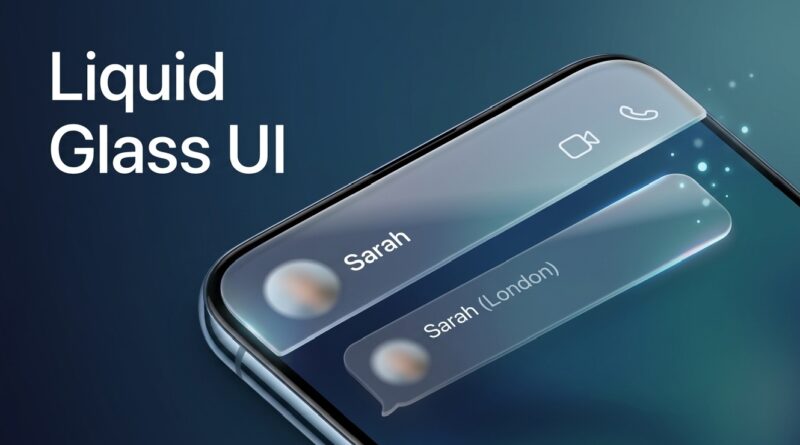
WhatsApp has finally started rolling out its highly anticipated “Liquid Glass” interface. This design overhaul replaces the old, flat look with a modern, translucent aesthetic that reflects your chat wallpaper and smooths out animations.
However, many users in Pakistan and globally are reporting that the feature hasn’t appeared on their devices yet, or it suddenly disappeared after an update. If your WhatsApp still looks like it’s stuck in 2024, here are 5 proven ways to fix the “Liquid Glass not showing” issue.
1. Disable “Reduce Transparency” (iOS Users)
The Liquid Glass effect relies heavily on system-level blur and transparency. If you have certain accessibility settings turned on to save battery or improve readability, it will “kill” the Liquid Glass look.
- How to fix: Go to Settings > Accessibility > Display & Text Size.
- The Check: Ensure that “Reduce Transparency” is toggled OFF. Once off, restart WhatsApp, and you should see the frosted glass effect on the top navigation bar.
2. Join the WhatsApp Beta Program
As of May 2026, Liquid Glass is still in a “staged rollout.” This means Meta is releasing it to a small percentage of users at a time to monitor for bugs.
- For Android: Visit the Google Play Store, search for WhatsApp, and scroll down to “Join the Beta”.
- For iOS: Use the TestFlight app to check for available slots. Note: Beta versions are the first to get visual updates like Liquid Glass and the new floating chat bar.
3. Force Close and Clear Cache
Sometimes the app’s “UI cache” gets stuck on the old layout. Clearing the temporary files can force the app to reload the latest server-side design changes.
- Android: Long-press the WhatsApp icon > App Info > Storage > Clear Cache. (Do not click Clear Data unless you have a backup).
- iOS: Since there is no “clear cache” button, you must force-close the app by swiping it away from your multitasking view and restarting your iPhone.
4. Update Your Operating System
WhatsApp’s Liquid Glass is designed to align with the design language of iOS 26 and Android 16. If your phone is running an older OS, the app may default to the “Classic” flat UI to save processing power.
Check for updates in your phone’s System Settings. If your device is too old to support the latest transparency layers, you might not be able to see the full Liquid Glass effect even with the latest WhatsApp update.
5. Check for “Reduce Motion” Settings
Liquid Glass isn’t just a static image; it includes “refractive” animations that move when you scroll. If your phone is in Power Saving Mode or has Reduce Motion enabled, the app will disable these heavy visual effects.
The Fix: Go to your phone’s Accessibility settings and turn off Reduce Motion. Also, ensure your Battery Saver is off, then check your WhatsApp chat screen again.
The Bottom Line
If you’ve tried all five steps and still don’t see it, don’t panic. Meta often uses Server-Side Switches. This means the code is already on your phone, but Google/Meta hasn’t “flipped the switch” for your specific account yet. Keep your app updated and check back in a few days!
Pro Tip for Pkfeed Readers: If you’re using a modified version of WhatsApp (like GB or FM WhatsApp), Liquid Glass will likely not work and could lead to account bans. Always stick to the official version from the Play Store or App Store.

Pingback: WhatsApp’s "Liquid Glass" Makeover: The Chat Interface is Getting a Modern Glow-Up -