
The Glass Revolution: How to Enable WhatsApp’s Liquid Glass Interface
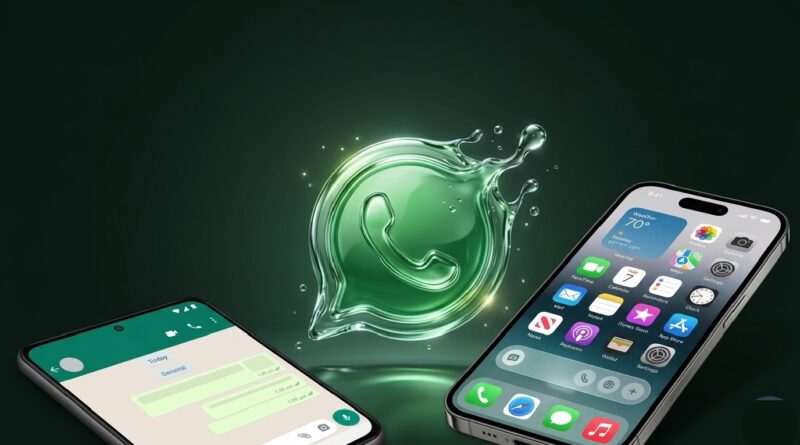
In the world of mobile aesthetics, the “flat design” era is officially being replaced by something much more fluid. Inspired by the transparency and depth of iOS 26, WhatsApp has begun rolling out its Liquid Glass Interface. This design overhaul swaps solid blocks of color for translucent layers, frosted glass effects, and dynamic reflections that make the app feel like a physical object in your hand.
If your WhatsApp still looks like it’s from 2024, here is how you can step into the future and enable the Liquid Glass look.What is the Liquid Glass Interface?Unlike a traditional theme, Liquid Glass is a system-level design language. It focuses on:
- Translucent Navigation: The top and bottom bars blur the chat wallpaper behind them.
- Floating Elements: Buttons and chat bars appear to “float” with subtle drop shadows.
- Refractive Depth: Elements react to your movement, mimicking the way light passes through real glass.
Step 1: Meet the System Requirements
Because Liquid Glass relies on advanced GPU rendering, it isn’t available on every device. To see these effects, you generally need:.
- iPhone Users: Must be running iOS 26 or higher.
- Android Users: While the rollout is slower, devices on Android 16 with “High Performance Graphics” enabled in developer options are beginning to see similar translucent elements
Step 2: Update to the Correct Version
The Liquid Glass interface is being deployed via a server-side toggle, but you must have the base code installed.Open the App Store or Google Play Store. Search for WhatsApp and ensure you are on version 25.28.75 (for iOS) or higher. Pro Tip: If you want early access, join the WhatsApp Beta via TestFlight (iOS) or the Play Store Beta program, as the “Liquid Glass Chat Bar” is currently being tested in beta versions like 26.17.10.
Step 3: Configure Your System Settings
Sometimes, the “glass” effect is disabled by your phone’s battery-saving or accessibility settings. If your WhatsApp still looks solid, check these:
- For iOS:Go to Settings > Accessibility > Display & Text Size.
Ensure Reduce Transparency is turned OFF. If this is on, the “glass” will turn into solid gray or white.
- For Android:Go to Settings >Display
Ensure Blur Effects or Window Level Blurs are enabled (standard on flagship devices like Samsung S-series or Pixel).
Step 4: The “Force Refresh” Trick
If you have the right version and settings but don’t see the change, the app might be stuck on the old cached UI.Back up your chats (Settings > Chats > Chat Backup).
Uninstall WhatsApp
Reinstall the latest version from the official store.This forces the app to ping the server for the latest UI configuration, often triggering the Liquid Glass activation.
Why Don’t I Have It Yet?
If you’ve followed all the steps and your UI is still “flat,” don’t panic. Meta (WhatsApp’s parent company) uses A/B Testing. This means they release the feature to 10% of users, then 25%, and so on, to ensure their servers can handle the new rendering requirements.
Warning: Avoid “WhatsApp Gold” or third-party APKs claiming to give you Liquid Glass instantly. These are almost always malware. Stick to the official updates!
Summary Table: Quick Checklist
| Requirement | Detail |
| Minimum OS iOS 26 / Android 16 (Preferred) | App Version 25.28.75 or higherKey Setting “Reduce Transparency” must be OFF |
| Visual Cue | Wallpaper visible behind the navigation bar |
Is your WhatsApp looking more transparent lately, or are you still waiting for the update to hit your region?


Pingback: WhatsApp’s "Liquid Glass" Makeover: The Chat Interface is Getting a Modern Glow-Up -